
1. OVERVIEW
WorkBuddy keeps your desktop and mobile experience connected, so switching devices doesn't interrupt your workflow.
Start a task on your computer before heading into a meeting, commuting home, or stepping away from your desk. From the WorkBuddy app, you can keep an eye on progress, respond when WorkBuddy needs input, and step in whenever necessary.
Your tasks continue running on your computer while you stay in control from your phone.
2. WHAT YOU CAN DO
- One-Tap Connection: Link the WorkBuddy app to a computer signed in with the same account. After the first authorization, the connection is saved for future use.
- Continue from Your Phone: Open an existing conversation in the app and send additional instructions. WorkBuddy will continue the task on your computer.
- Stop from Your Phone: If a task is going in the wrong direction or no longer needs to continue, stop it directly from your phone.
- Live Task Status: See whether your computer is online and whether each task is running, waiting for input, completed, stopped, or failed.
3. BEFORE YOU START
Make sure the following requirements are met before connecting your phone to your computer:
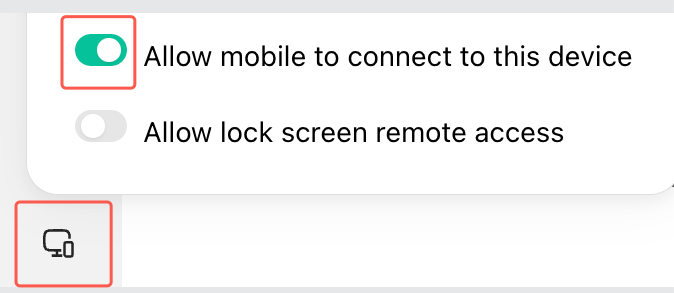
- Desktop: WorkBuddy is installed and signed in on your Mac or Windows PC. In WorkBuddy, hover over the app icon and turn on Allow Mobile Connections.
- Mobile: You are signed in to the WorkBuddy app with the same account used on your computer.
- Network: Both your computer and phone are connected to the internet.
Recommended Setting
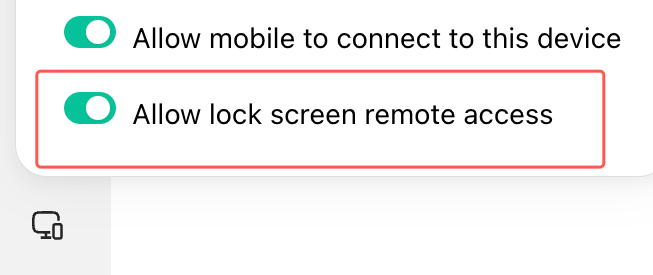
Turn on Remote Access While Locked in System Settings.
When enabled, your computer will stay awake and the display will not turn off automatically while the device is locked. This helps keep the connection available and allows WorkBuddy tasks to continue running while you're away.
4. CONNECT YOUR COMPUTER
Connect for the First Time
-
Allow mobile connections on your computer
In WorkBuddy on your computer, hover over the app icon and turn on Allow Mobile Connections.
-
Connect from the WorkBuddy app
Open the WorkBuddy app. From the home screen, select Connect to Computer in the left sidebar.
Once the connection is established, WorkBuddy remembers the linked computer, so you do not need to repeat the setup every time.
The next time you open the app, you can immediately view tasks on your connected computer.
Stay Connected While Your Computer Is Locked
On your computer, go to System Settings > Remote Access While Locked and turn the setting on.
This lets you continue viewing and managing WorkBuddy tasks from your phone even when your computer is locked.
We recommend enabling this setting before leaving your desk so you can stay connected while you're away.
5. CHECK TASK STATUS
Once your computer is connected, the WorkBuddy app shows status at both the device and conversation level.
Device Status
| Status | Indicator | What It Means |
|---|---|---|
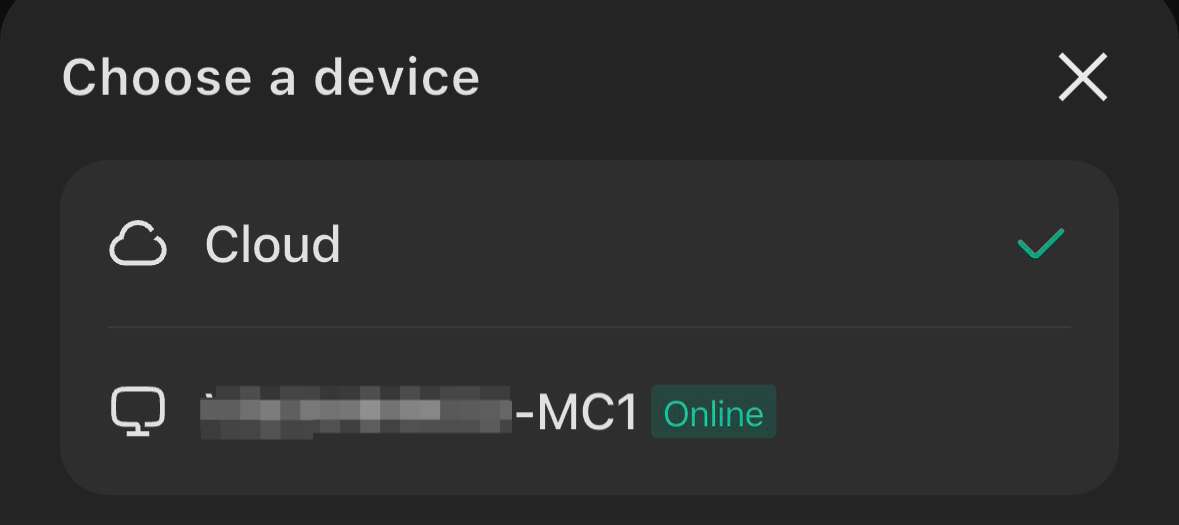
| Online | Green dot | Your computer is online and WorkBuddy is available for interaction. |
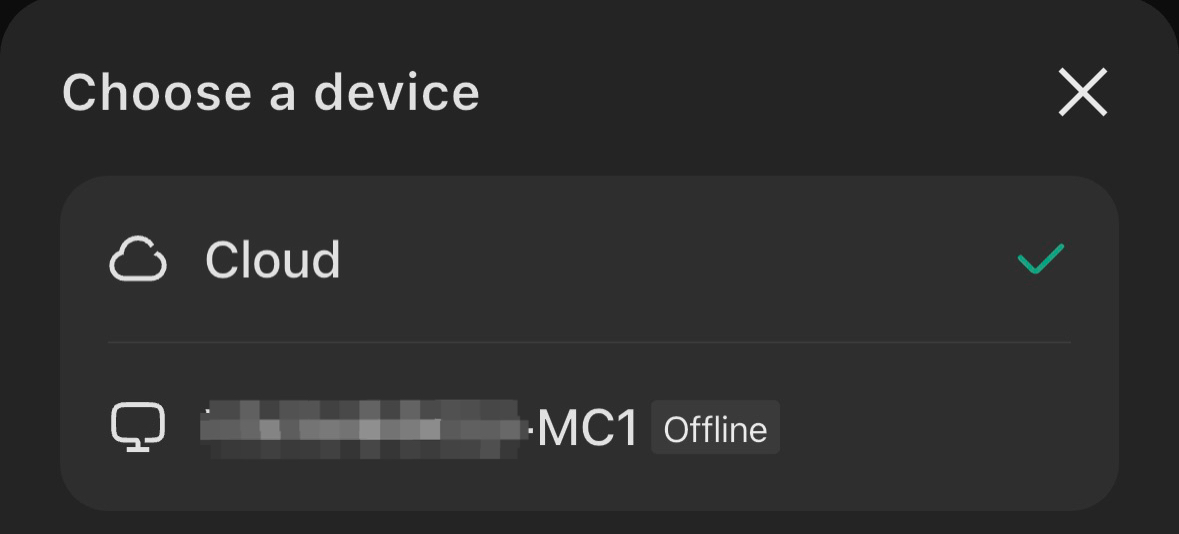
| Offline | Gray dot | Your computer is offline or cannot be reached over the network. |
Conversation Status
| Status | What It Means |
|---|---|
| Running | WorkBuddy is currently working on the task. You can follow its progress in real time. |
| Waiting for Input | The task is paused and waiting for your confirmation or additional instructions. |
| Completed | The task finished successfully. You can review the full task history. |
| Stopped | The task was manually stopped. Work completed before it was stopped is retained. |
| Failed | The task ended because of an error. You can review the error details. |
6. CONTINUE A TASK FROM YOUR PHONE
If WorkBuddy needs additional instructions while a task is running on your computer, you can continue the conversation directly from the app.
- Find the conversation in your task list or workspace.
- Open the conversation.
- Send an instruction, such as "Continue" or "Add logging to the changes you just made."
- Your instruction is sent to WorkBuddy on your computer, where the task continues to run.
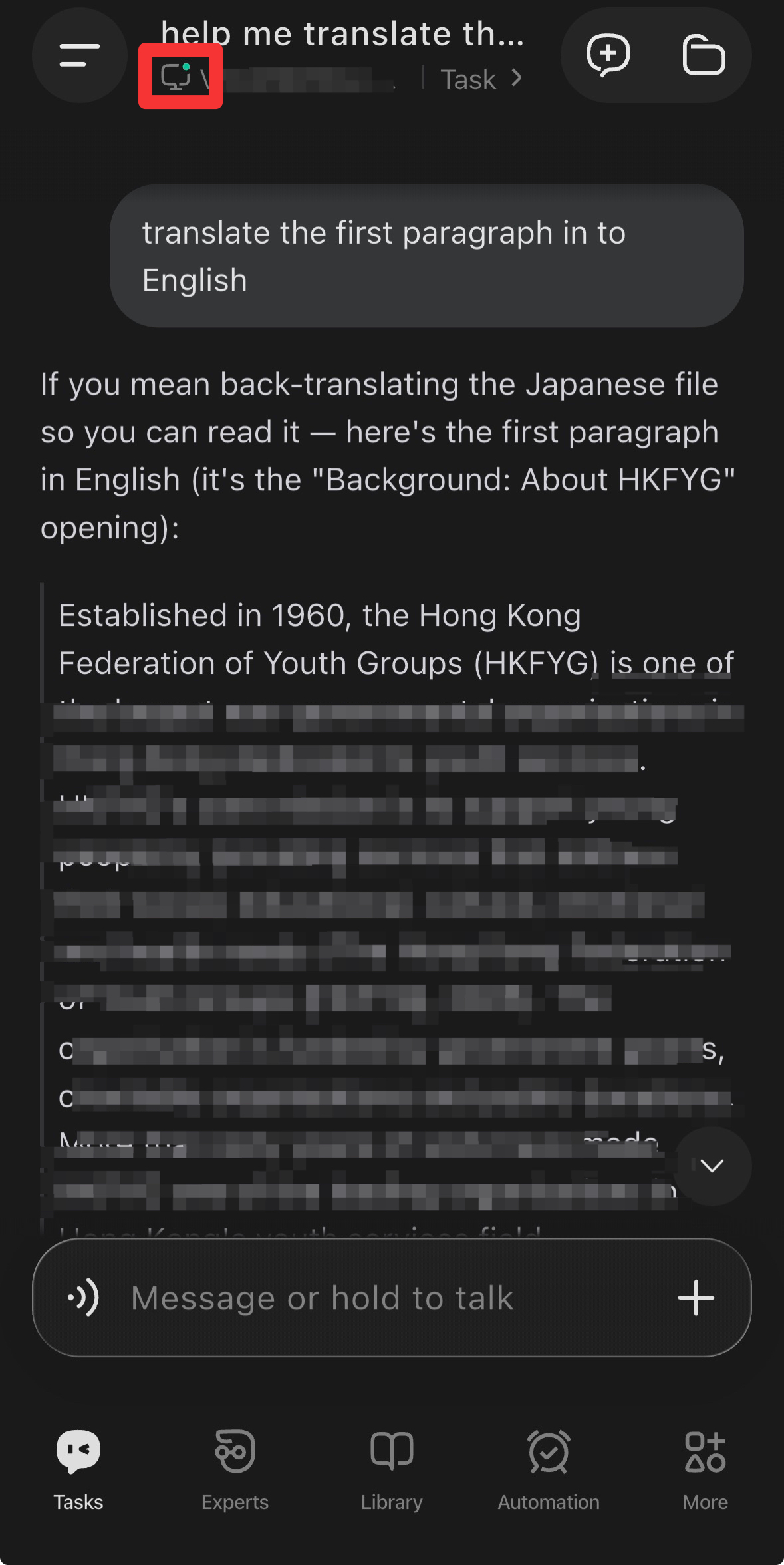
Start a New Task in the Current Workspace
While viewing a task, select the New icon in the upper-left corner to start another task.
The new task will run in the current workspace.
You can also return to the home screen and use the lower-left corner to create or select a remote workspace for the task.

7. STOP A TASK FROM YOUR PHONE
If a task starts going in the wrong direction, or you no longer need it to continue, you can stop it directly from the app.
- Open the conversation for the task that is currently running and tap the input field.
- While the task is running, the Send button changes to a Stop button. Tap it to stop WorkBuddy on your computer immediately.
- The conversation will update to show that the current task has been stopped and execution on your computer has ended.
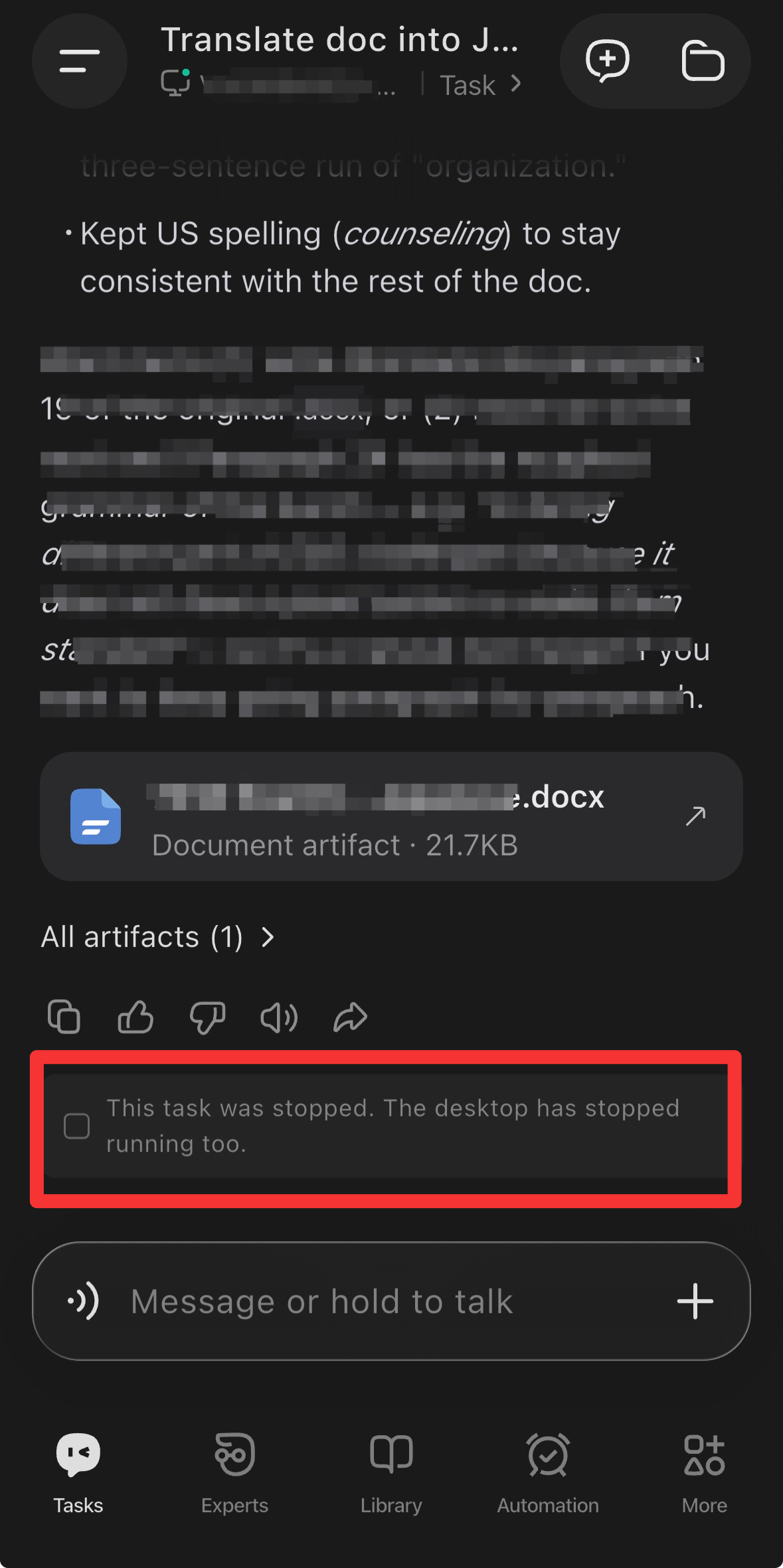
Any work completed before the task was stopped remains available in the conversation.
8. BEST PRACTICES
- Turn on Remote Access While Locked: This helps keep your computer available when you're away from your desk, even if it is locked.
- Let longer tasks run while you're on the go: Start a task on your computer, then check in from your phone during a commute, meeting, or break.
- Respond when WorkBuddy needs input: If a task is waiting for confirmation or additional instructions, you can respond directly from the app instead of returning to your computer.
- Stop tasks that go off track: If the result is no longer heading in the direction you want, stop the task early to avoid unnecessary token usage.
9. IMPORTANT INFORMATION
Information We Collect and How It Is Used
| Information | Required | Purpose |
|---|---|---|
| WorkBuddy account information | Yes | Confirms that the connected computer and mobile device belong to the same user. |
| Device identifiers for desktop and mobile | Yes | Links devices and distinguishes tasks associated with different computers. |
| Conversation content and task history | Yes | Displays desktop task status, conversation history, and execution details in the app. |
| Device online status | No | Shows online and offline indicators to make connection status easier to understand. |
Permissions
- The WorkBuddy app can only view and manage tasks on computers you have explicitly authorized and connected.
- WorkBuddy does not access computers that have not been authorized.
- Actions sent from your phone are performed under your account and within the permissions already available to WorkBuddy on your computer.
- Connecting your phone does not grant WorkBuddy any additional desktop permissions.
Security
- Communication between the WorkBuddy app and desktop client is encrypted through a secure relay channel.
- Connected devices are linked to your WorkBuddy account. Other accounts cannot use your existing connection to access your computer.
- You can disconnect a computer at any time from either the desktop client or the app.
- If you use WorkBuddy on a shared or public computer, sign out when you are finished.
Credit Usage
Checking task status or sending follow-up instructions from the WorkBuddy app does not consume additional credits by itself.
Credits are consumed when WorkBuddy actually performs work on your computer, just as they are when you use WorkBuddy directly from the desktop client.
Third-Party Sharing
Keeping your desktop and mobile experience connected requires data to be synchronized between the WorkBuddy desktop client and the WorkBuddy app.
This data is handled by WorkBuddy as necessary to provide the feature and is not additionally shared with third-party services.
Disclaimer
You are responsible for deciding whether and when to stop a task.
WorkBuddy does not automatically determine when a task should be stopped. Review the current task status before ending execution.
10. TIPS
- Before leaving your computer, make sure both Allow Mobile Connections and Remote Access While Locked are turned on.
- Instructions sent from your phone are delivered directly to WorkBuddy on your computer for execution. Review instructions carefully before sending requests that involve file changes or external communications.
- If the app shows your computer as offline even though it is online, try reconnecting the device or checking the network connection.
- If WorkBuddy pauses and needs confirmation, the app will show Waiting for Input. Responding promptly can prevent the task from remaining paused for an extended period.