

Permission Modes
WorkBuddy can read and write files, organize folders, generate documents, and run scripts or external programs when a task requires it. To balance efficiency and safety, WorkBuddy provides two permission modes: Default Permissions and Full Access. For everyday work, we recommend Default Permissions: AI can work efficiently inside your workspace, while high-risk operations stop for your confirmation first.
Think of Default Permissions as a safety guardrail. It stays out of the way for routine work, but asks you to review and confirm when an action may cross an important boundary.
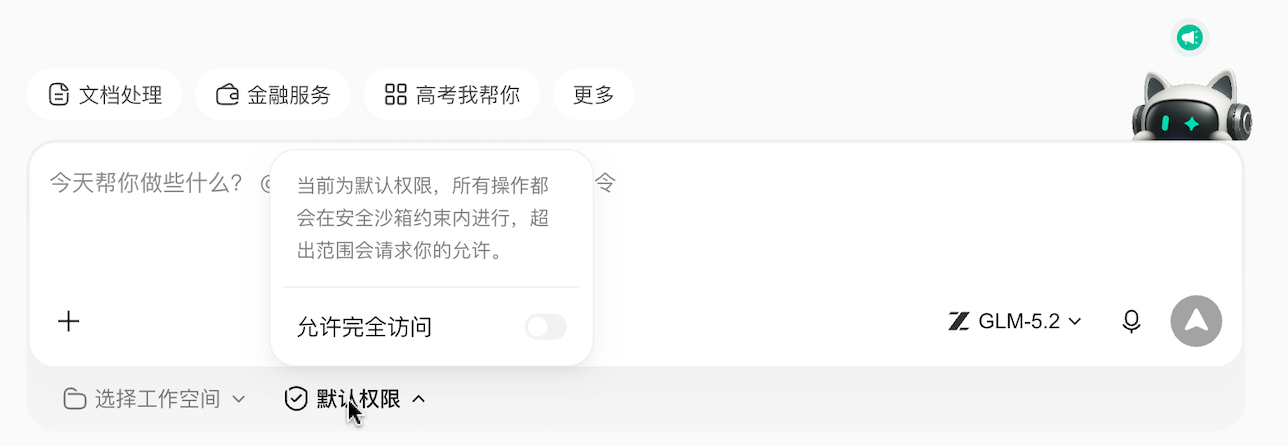
1. Where to switch permission modes
In the new task input area, click the Default Permissions dropdown to switch between Default Permissions and Full Access. Keep Default Permissions on for daily tasks. Only switch to Full Access briefly when the task is trusted, recoverable, and isolated.
2. What is a workspace
A workspace is the folder where the current task mainly reads and saves files. The folder you choose when creating a task, or the task folder WorkBuddy creates automatically, becomes the workspace for that task.
Put the files for one task in the same workspace, for example:
weekly-reportinvoice-archivecustomer-data-cleanupbatch-image-processing
This helps WorkBuddy process files more smoothly and helps Default Permissions decide whether an operation belongs to the current task scope.
Recommendation
Before working with important files, create a separate task folder and place copies of the needed files there. Default Permissions reduces accidental operation risk, but it is not a replacement for backups.
3. What Default Permissions protects
In Default Permissions, WorkBuddy focuses on protecting important assets and high-risk actions. When delete protection is enabled, normal file writes can usually continue directly. But when an operation touches sensitive paths, important deletion, scripts, commands, or network-related risk, WorkBuddy stops for your confirmation.
Confirmation is usually needed for:
| Operation | Details |
|---|---|
| Write to protected or sensitive paths | Avoid overwriting keys, credentials, or security settings |
| Delete protected files, important folders, or many files at once | Avoid accidentally deleting hard-to-restore data; ordinary single-file deletion is usually covered by delete protection |
| Run scripts, commands, or external programs | May modify files, access the network, or affect the system environment |
| Network access or sensitive capabilities | Confirmation is required when Security Center rules or high-risk capabilities are triggered |
If you cancel the confirmation, WorkBuddy will not perform that step. You can continue the conversation and ask WorkBuddy to use a safer approach, such as listing files before deleting them or saving output inside the workspace.
The sandbox adds extra protection:
- Commands run under sandbox constraints first. If they are blocked, WorkBuddy then decides whether confirmation is needed based on risk.
- Delete protection tries to reduce accidental deletion risk through safe delete or recycle-bin protection.
- File backup saves a copy before modifying an existing file, while new files are not repeatedly backed up. This is currently supported on Windows only.
4. Why this is stronger than simple script analysis
Script analysis usually reviews a command or script and decides whether it looks risky. But the actual risk can come from runtime behavior:
- A script may call other scripts or tools internally.
- File paths may be generated dynamically during execution.
- A normal command may delete, overwrite, or move many files depending on its parameters.
- The real behavior of an external program is not always clear from the script text alone.
Default Permissions does not only ask whether something looks risky. It asks for confirmation when WorkBuddy is about to perform a high-risk operation. Even though normal file writes can continue more smoothly, WorkBuddy still returns the decision to you when the next step triggers one of the confirmation conditions above.
This makes Default Permissions suitable for everyday office work: AI can continue most low-risk steps automatically, while you still control the key moments that may cause damage.
5. What to check in confirmation prompts
When WorkBuddy asks for confirmation, check three things:
- Operation type: whether it is writing files, deleting files, or running scripts.
- Impact scope: whether the target path is inside the workspace and whether it may affect Desktop, Downloads, source code, or other important folders.
- Reason: whether the step is truly necessary for the task.
If you are not sure, cancel first and ask WorkBuddy to:
- show the files it will modify or delete;
- generate a preview or backup first;
- save output inside the workspace;
- explain the script before running it.
6. What is Full Access
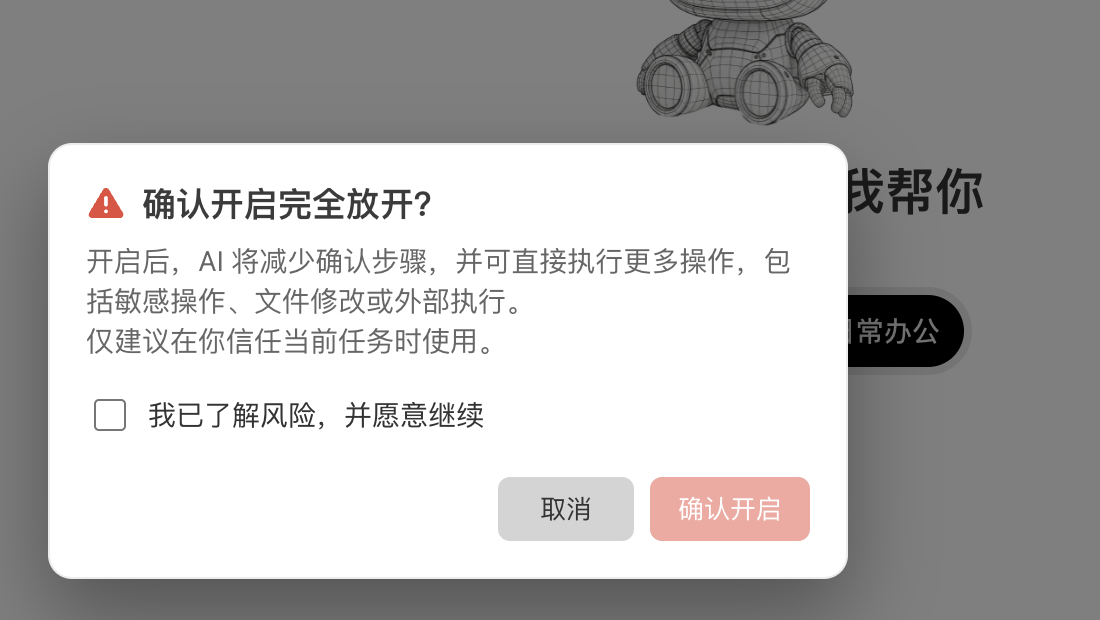
Full Access turns off the confirmation flow above. After it is enabled, WorkBuddy no longer asks step by step before high-risk operations, including writing files, deleting files, running scripts, and calling external programs.
This reduces confirmation prompts, but it also means that if the task uses the wrong folder, a script contains the wrong path, or an external tool behaves unexpectedly, the operation may directly affect files on your computer.
When you switch to Full Access from the dropdown, WorkBuddy shows a confirmation dialog. Confirm only after you have checked that the current task and files are recoverable. If you are unsure, cancel and keep using Default Permissions.
Use with care
Full Access is not safer, and it does not automatically understand every risk. It simply lets AI pass the confirmation step automatically. Use it only for trusted tasks, isolated environments, or temporary test folders, such as Docker, virtual machines, or disposable workspaces.
Avoid Full Access in these situations:
- You are working with production data, customer data, financial data, or the only copy of important files.
- The workspace is near Desktop, Downloads, your personal document root, or a source repository root.
- The task will delete, rename, move, or overwrite many files.
- The task needs to run scripts or third-party tools you do not understand.
- Your computer contains important files without backups.
7. How to choose a permission mode
| Scenario | Recommendation |
|---|---|
| Daily document generation, spreadsheet processing, and file organization | Use Default Permissions |
| First time handling this kind of task, or the goal is still unclear | Use Default Permissions and ask WorkBuddy to list a plan first |
| Batch delete, move, or overwrite operations | Use Default Permissions and carefully check paths and file lists before confirming |
| Repeatedly running trusted scripts in an isolated folder | Full Access can be enabled briefly |
| Experiments in Docker, virtual machines, or temporary test environments | Full Access can be used as needed |
| Production environments, important devices, or only copies of files | Do not use Full Access |
8. Recommended workflow
- Choose the workspace first: prepare a separate folder for each task.
- Back up important files: especially before batch processing, deletion, or renaming.
- Use Default Permissions by default: let WorkBuddy ask you at key risk points.
- Read confirmation prompts before continuing: check operation type, path, and impact.
- Cancel when unsure: ask WorkBuddy to explain, preview, or generate a file list first.
- Turn off Full Access after use: use it only briefly in trusted, isolated, recoverable environments.
Default Permissions is not designed to interrupt you frequently. It adds one more confirmation at the moments most likely to cause damage. Most everyday tasks can still proceed automatically; actions that may change important computer state remain under your final control.